Send a message from a profile
Use a configured profile-message dialog and understand who receives the inquiry.
Español · English edition
Audience: visitors to a supported public profile. Availability: configured website workflow; it is separate from the free QR download and is not automatically enabled by installing UnionWP.
Open the right profile
Use the official directory and open the published profile of the intended person. Some directory entries are intentionally listing-only and have no public profile or message action. A directory listing does not promise an individual contact route.
If the site offers English and Spanish profiles, choose your language before opening the message dialog. Follow the language actually offered by the form. Do not assume every document or application is translated.
Prepare and send
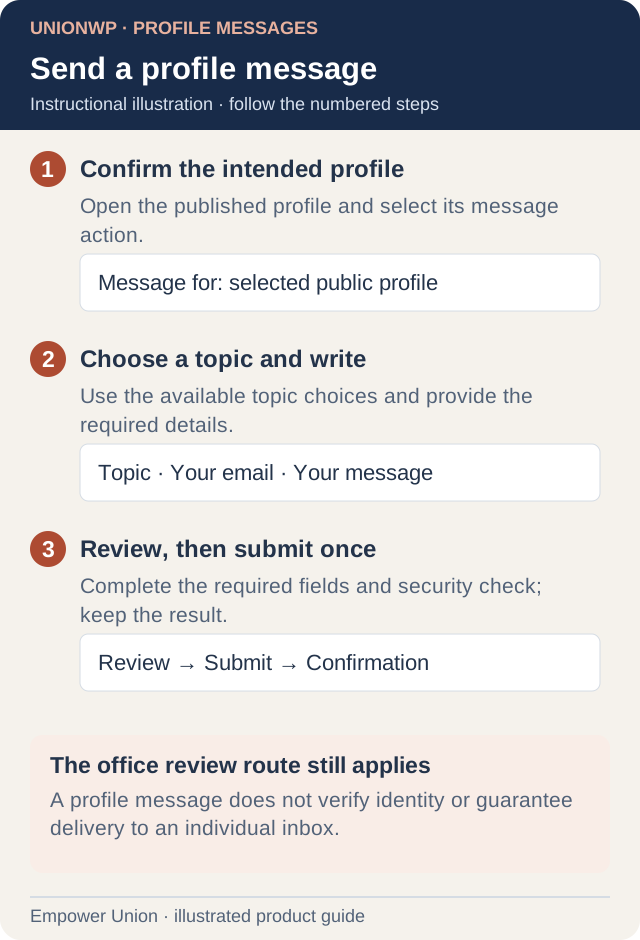
Illustration: A profile message does not verify identity or guarantee delivery to an individual inbox. Simplified workflow; follow the controls on your site. Open full-size illustration.
- Select Send a message on a supported profile. The form opens in a dialog when that layout is configured.
- Check Message for. This identifies the intended profile; do not try to change it to another person within the form.
- Enter your name, working email address and the employer or work-location information requested. Supply an optional membership reference only when appropriate.
- Choose a Topic from the options offered for that profile. Topic choices can vary by role. Use Other / not sure if you are unsure; the topic does not establish a formal assignment of responsibility.
- Write a concise message and include the information needed to understand the request. Keep passwords and unnecessary sensitive documents out of it.
- Complete all required fields and the security check when it appears. A hidden security control may become available only after the required information is valid.
- Review the intended person, email, topic and message, then submit once and wait for the confirmation.
- Keep any reference provided. Close the dialog with its close button or Escape when supported; closing does not send the message.
Understand delivery and identity
The profile identifies who the inquiry concerns. It does not guarantee delivery to that person’s individual inbox. Messages follow the organization’s configured office review route. Entering a topic or email does not reroute that destination.
A public inquiry is unverified: a supplied name, email or membership reference does not prove identity or membership. Sending it does not create a formal grievance, approve a request or guarantee a response time. Use the official required process for matters with specific procedures or deadlines.
If you cannot continue
If the form is paused or missing, use the displayed office-contact alternative. A role-specific topic that disappears may no longer apply to the selected profile; reopen the correct profile and choose a current option. Follow any rate-limit message rather than repeatedly sending.
If you are unsure whether the first attempt completed, ask the office to check its record before sending a duplicate. For a technical issue, report the profile address, language, visible error and approximate time through support, without including the private message.