Get started with UnionWP Pro
Understand Pro, confirm your access and setup, then find the right guide for your first task.
UnionWP Pro is the paid add-on for managing the UnionWP tools and connected services configured for your union. It brings together optional-form controls, staff-notification controls, email-delivery reporting, site insights, and security, backup and uptime reports.
Who this is for: the person assigned to operate these tools. Current Pro screens require a site administrator account. You do not need programming knowledge to follow the user guides.
1. Confirm your access and setup
Before you start, have:
- Your union’s official website address and approved administration sign-in link.
- Your own administrator account and the name of the person responsible for the website.
- An agreed task, such as checking a report or reviewing whether an optional form is available.
Pro requires UnionWP and UnionWP Pro to remain installed and active. Connected reports also require their corresponding services to be configured. A visible tool card does not mean every connection is ready.
Installation, service connections, recipients and form mappings belong to the responsible setup administrator. If these have not been handed over, use Setup and handover before depending on the tools for a live process.
Staff request forms and Pro controls have different access requirements. If your job is to submit a request, begin with Staff workflows; you do not need Pro dashboard access just to follow an assigned request process.
2. Open your Pro overview
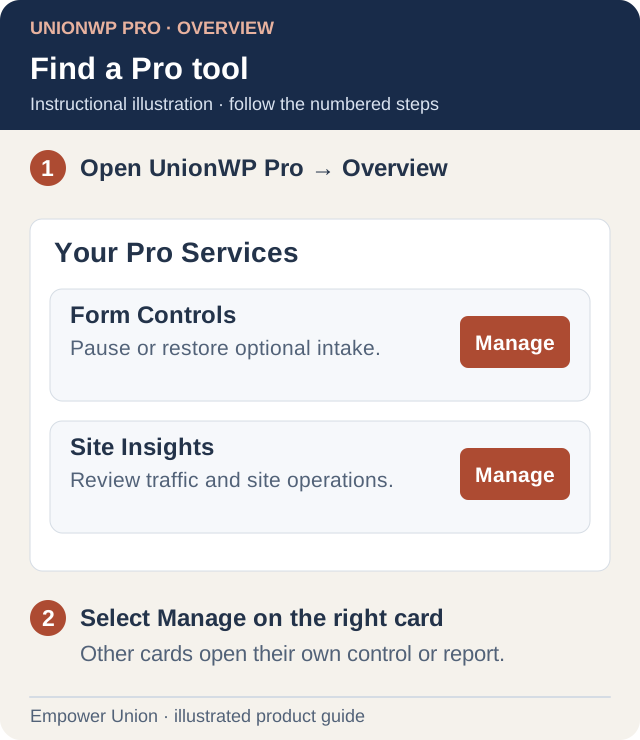
Illustration: the Pro overview groups tools into cards. Two example cards are shown; use Manage on the card for your task. Open full-size illustration.
- Sign in through the link supplied by your union.
- Confirm that you are on the intended live website or review environment.
- In the administration sidebar, open UnionWP Pro → Overview.
- Check the heading Your Pro Services and the union name.
- Read the status and description on the card for your task, then select Manage.
The separate UnionWP menu opens the free QR generator. The Pro overview is your starting point for Pro controls and reports. The dashboard tour shows how to find them.
3. Make your first visit a review
Before changing a control, understand its current state:
- Open one relevant tool from the overview.
- Confirm the website, form title or report scope shown on that screen.
- Read its connection state, saved values, timestamps and any warnings.
- Open Help with this screen for the matching instructions. It opens in a new tab so you can keep your place.
- Note the result and identify the next action, if any. A first review does not require saving settings, sending a test or submitting a live form.
Your first visit is complete when you can find the relevant screen, explain its current state and choose the next guide. If a service is unconnected or a report is empty, record that result and ask the responsible administrator to check setup. An old timestamp is not proof of current service health.
4. Choose your next task
| What you need to do | Guide |
|---|---|
| Find your way around Pro | Dashboard tour |
| Pause or restore optional intake | Manage optional forms |
| Review or change mapped staff alerts | Manage staff notifications |
| Investigate a missing email notification | Check email delivery |
| Understand website traffic and reports | Read site insights |
Follow the whole task guide, including its saved-state and public-result checks. When changing an optional form, confirm its exact title and form number. The designated membership form is excluded from Pro’s optional-form switches and automatic staff alerts; its existing application email workflow is separate.
Form availability and staff alerts are independent. A notification test sends a real external alert, so coordinate it with the approved recipients before using the test action. Review environments deliberately block external alerts.
Setup and technical responsibilities
Use the separate Admin & Developer section for form and page mapping, security and access, and backups and uptime.
Pro reporting screens show the evidence supplied by connected services. They do not automatically repair mail delivery, restore backups, provision monitoring or create new forms. Your union’s configured forms, recipients and review process still apply.
SMS sending and credit purchases remain unavailable. Check Products and availability before planning work around a feature.
If you cannot continue
For a missing menu or denied access, use Sign-in and access. For an unexpected result, use Troubleshooting, then Contact support with the screen name, visible message and steps you took.