Map forms and pages
Review and change the setup behind form links, fallback routing and staff-alert eligibility.
Audience: the administrator responsible for setup or an agreed mapping change. Requires: existing forms, the intended website pages and a published contact fallback. This is a setup task, not a step ordinary staff need before submitting a request.
Record the intended result
Identify the form by title and number, its page, any section anchor, the contact fallback and whether it should be eligible for staff alerts. Keep a record of the current selections before editing. Saving Client Settings saves the screen’s mappings together.
Review the current setup
- Open UnionWP Pro → Client Settings.
- Under Client Identity, confirm Union name.
- Review Membership application. Once configured, this mapping is protected and is displayed rather than offered as a routine replacement choice.
- Confirm Contact fallback page points to the agreed published contact page.
- Under Form And Page Mapping, find the intended form and compare its row with your handover record.
Understand each choice
| Field | Purpose and check before saving |
|---|---|
| Website page | Identifies where the form is presented. The page actually contains the intended form or section. |
| Anchor | Adds a section location to the page link. The matching section exists; use its identifier, such as request-form. |
| Redirect when off | Routes a disabled dedicated intake page to Contact. The page does not contain other content visitors still need. |
| Staff alert | Marks the form as eligible for the mapped staff-alert workflow. Its audience and notification purpose are approved. |
A mapping does not insert a form into a page. Shared pages need their existing section-visibility setup preserved. The contact fallback itself is kept available rather than redirected by these controls.
Save an agreed change
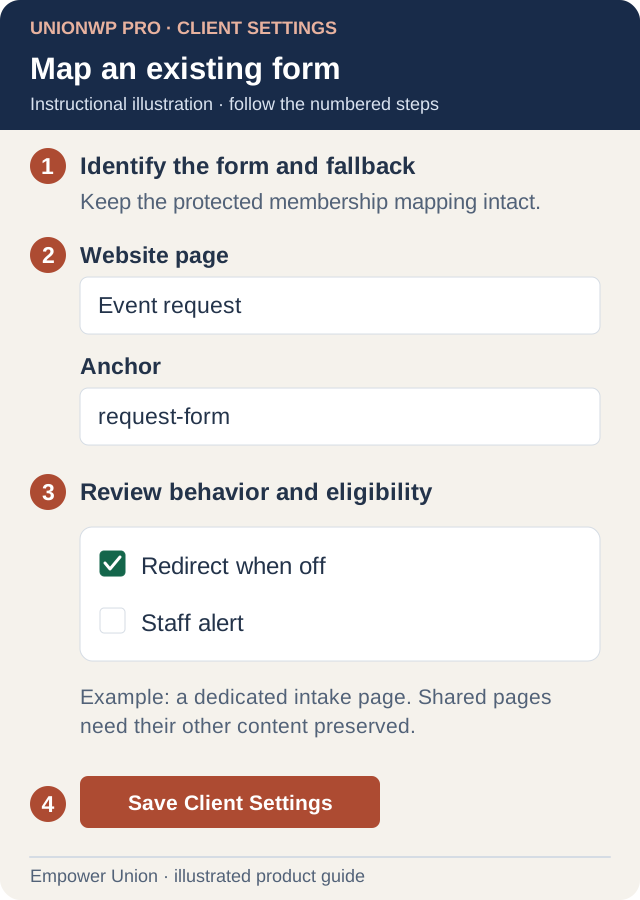
Illustration: this stacks fields from one mapping row for readability. Mapping does not insert, publish or enable a form; Staff alert is eligibility only. Open full-size illustration.
- Select the correct existing Website page for the intended form.
- Enter the existing section identifier in Anchor if the link should jump to that section; otherwise leave it empty.
- Review Redirect when off only for an appropriate dedicated intake page.
- Review Staff alert eligibility. Membership is excluded.
- Check the remaining rows and identity settings, then select Save Client Settings.
- Reopen the screen and confirm the saved selections.
- Open Form Controls → View Page for the affected form and inspect the public destination and anchor.
- Review the staff-notification screen separately if alert eligibility changed.
Important effects and recovery
Selecting Staff alert does not enable the form or complete the notification connection. Removing a form’s staff-alert eligibility also disables its previously mapped managed alert feed. Re-adding eligibility does not replace the separate enable action.
If a link is wrong, restore the affected page or anchor from your record and recheck it. If a shared page is being redirected unexpectedly, review its redirect selection. Do not create duplicate forms or alter their fields to repair a mapping problem.
For initial setup, continue with Setup and handover.