Review security and access
Read the security dashboard without confusing configuration with a complete audit.
Audience: site administrators. Requires: Pro and your site’s configured protection services. For signing in or a denied staff page, use Sign-in and access.
Review the dashboard
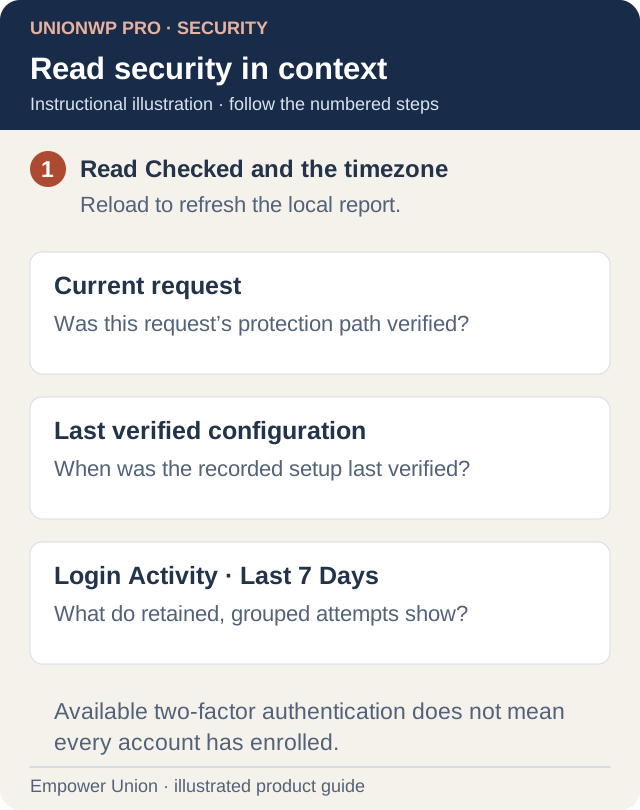
Illustration: these sections describe different evidence. A recorded configuration or available sign-in method is not a complete security audit. Open full-size illustration.
- Open UnionWP Pro → Security.
- Read the Checked timestamp and site timezone. Reload the page to refresh local status.
- Review whether the current request’s protection path was verified.
- If a Last verified configuration section is present, read Verified on, the protected hostnames and reported encryption/firewall information. These are recorded verification details, not a continuous account-wide audit.
- Review the login-protection information and record any missing or unexpected setting for the responsible administrator.
- Review Login Activity · Last 7 Days, noting whether retained logs are available.
Opening this screen is read-only. Settings links lead to separate systems where changes require the appropriate responsibility and access.
Interpret the login settings
| Information | What to check |
|---|---|
| Failed login limit | Whether a limit is configured and its attempt/window values |
| Authenticator app | Which roles can use it |
| Required app enrollment | Whether any roles must enroll; availability alone does not mean every account has enrolled |
| Emailed sign-in codes | Whether this method is enabled in the displayed configuration |
| Application passwords / MCP | Whether that authentication capability is available; this does not list or approve individual connections |
| Login log retention | How long retained activity is expected to remain |
Other authentication and public-account-listing settings may also be shown. Review them with the administrator rather than changing a protection simply to remove a warning.
Understand activity totals
The login table summarizes recorded results and attempt counts from retained logs. Grouped attempts updated during the reporting period contribute to these totals. It is not a complete history of every request or a list of all attacks blocked elsewhere.
Logs unavailable means the dashboard cannot read the expected evidence. No login activity in retained logs describes that retained data, not proof that the website received no access attempts.
Handle an unexpected result
- Confirm the correct website and timestamp.
- Record the precise section and message.
- Tell the responsible security administrator what differed from your expected configuration.
- Let that administrator investigate the relevant layer before making changes.
- Recheck the screen after an agreed repair.
Use your own account, protect private records and avoid sharing connection credentials in screenshots. A QR or private link does not grant access to a protected page. For a user who cannot sign in, follow the access guide instead of disabling protections.