Review backups and uptime
Check backup coverage, monitoring freshness and the evidence needed for support.
Audience: administrators responsible for website continuity. Requires: the configured read-only status connection. Outcome: understand the latest reported state and identify an issue for the hosting or monitoring contact.
Check backup coverage and jobs
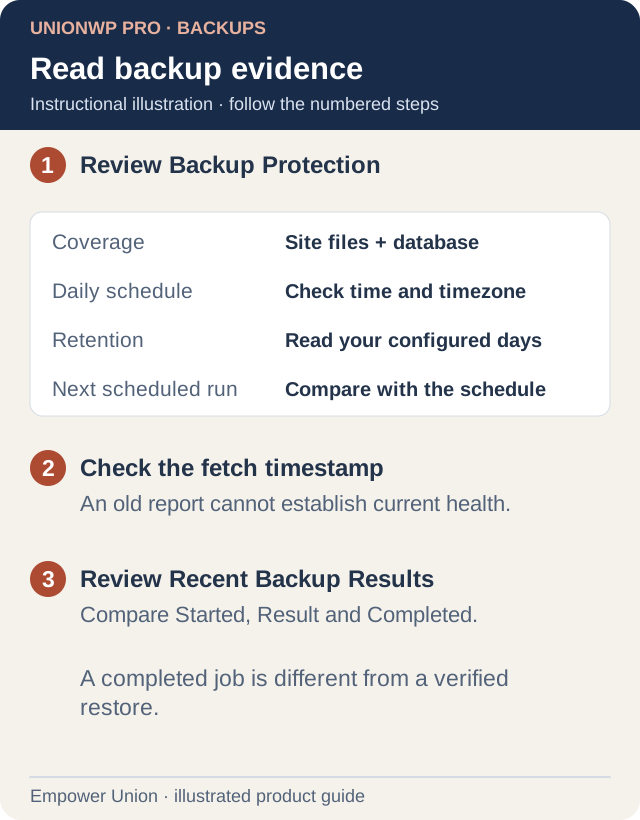
Illustration: read your own configured schedule and retention. Recent jobs are limited history; a completed backup does not prove a tested restoration. Open full-size illustration.
- Open UnionWP Pro → Backups.
- Confirm the website named in the reporting caption.
- Under Backup Protection, check Coverage for both site files and database.
- Read Daily schedule, its timezone, Retention and Next scheduled run.
- Check Provider status fetched and any warning about outdated information.
- Under Recent Backup Results, review Started, Result and Completed for recent jobs.
- Record any failed job, missing expected result or coverage warning and contact the person responsible for hosting.
The table contains up to 20 matching jobs from the latest 100 hosting events. It is a recent job history, not a complete inventory of retained backup files. An empty table alone does not prove no backups exist.
A completed job is different from a verified restoration. This screen does not run or restore a backup. Use the existing hosting-dashboard link only with appropriate access, and coordinate recovery separately so newer submissions and changes are preserved.
Check website availability
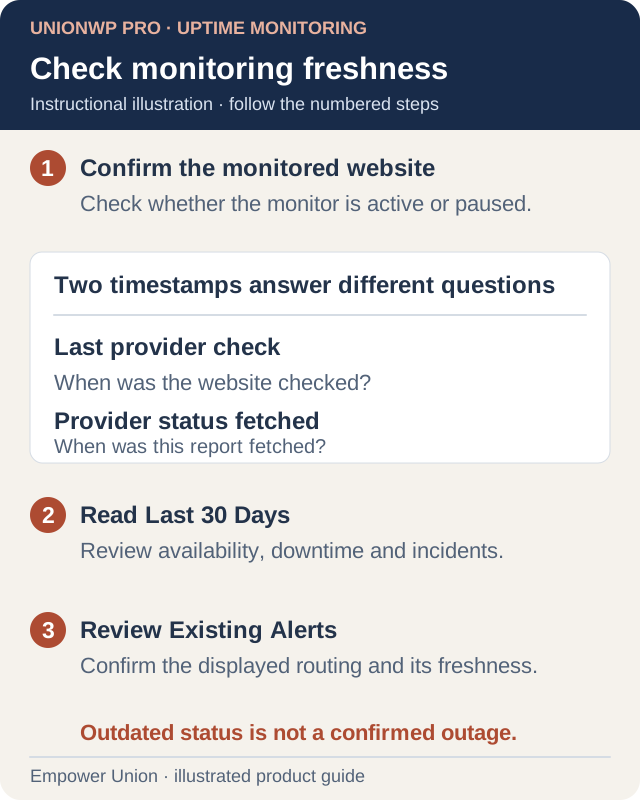
Illustration: distinguish the monitoring check from the report fetch. Review each section’s freshness before relying on its status. Open full-size illustration.
- Open UnionWP Pro → Uptime Monitoring.
- Under Website Availability, confirm Monitored website, Monitor state and Check frequency.
- Compare Last provider check with Provider status fetched. Both matter when deciding how current the result is.
- Under Last 30 Days, review availability, downtime and incident totals for that monitor.
- Under Existing Alerts, check the displayed policy, recipients, delivery channels and freshness.
- If a current warning or reported outage needs action, pass the website, times and visible state to the responsible monitoring contact.
A paused monitor is different from a confirmed outage. An available website check does not prove that every private tool, form or notification works.
Respond to unavailable or stale status
Status unavailable / outdated means the report cannot establish current health. Backup and routing sections can be outdated independently of the latest uptime check. A historical healthy result should not be treated as a current guarantee.
Reload the screen and read any connection warning. If the status remains stale, contact the administrator to check the status connection. Do not start a restore merely because the reporting connection is unavailable.
Know the screen’s limits
These pages display schedules, results and existing routing. They do not change alert policies, send test incidents, purchase backup storage or prove that a restore has been tested. Your service agreement and recovery plan define the actual coverage and response process.
Include the website, section, status, latest displayed timestamps and timezone in a support request.