Manage staff notifications
Review mapped alert coverage, enable or pause alerts, and interpret a test result.
Audience: administrators responsible for staff alerts. Requires: Pro, an existing staff-alert connection, approved recipients and mapped eligible forms. Outcome: you know which forms can alert staff and what each control changes.
Review the current state
- Open UnionWP Pro → Overview.
- On the Staff Notifications card, select Manage. The destination screen may retain a connection-specific title.
- Read Connection. If setup is needed, have the responsible administrator complete or inspect the existing connection through Connection Settings.
- In Staff Form Alerts, check each listed form, its Alert state and Form availability.
- Confirm that the mapped destination is an approved staff audience before enabling anything.
The alert and the form are separate. A form can be available with alerts off, or have an alert feed configured while intake is off. The designated membership form is excluded from these automatic staff alerts; its separate application email workflow remains independent.
Enable the mapped alerts
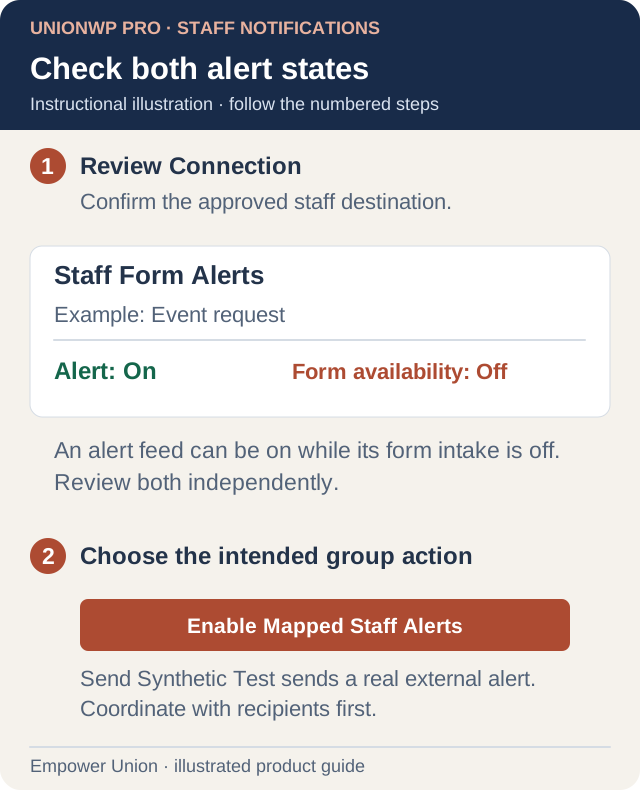
Illustration: On and Off can appear in different columns for the same form. Group enable affects mapped alerts; a synthetic test sends a real notification. Open full-size illustration.
- Review the complete list. This action applies to mapped staff alerts as a group, not just one selected row.
- Confirm that the connection is ready and you are working on the intended live site.
- Select Enable Mapped Staff Alerts.
- Confirm the saved message and review the Alert states again.
- Check Form availability separately in Form Controls.
If a form is missing from the table, have the setup administrator review its Staff alert eligibility in Client Settings. Do not change mappings merely to make an unrelated form appear.
Pause alerts
Select Turn Staff Alerts Off, then confirm the mapped alert states. This pauses the managed mapped alerts; it does not pause form intake or change every independent notification configured elsewhere on the site.
Verify with a synthetic test
Send Synthetic Test sends a real external notification without creating a form entry. Coordinate the test with the approved recipients, then select the button once and confirm receipt. A success message means the alert service accepted the test; confirm it reached the intended staff destination.
Staging environments block external alerts and tests. If the action is unavailable there, verify configuration with the administrator instead of weakening the environment controls.
A synthetic test checks the connection. It does not prove that every form feed is enabled or that a real submission will satisfy its rules. Any full workflow test should use an agreed test record and recipients.
Understand alert content and missing alerts
Alerts can include entered details, uploaded filenames and a private entry link. They do not replace the full submission record. Long text may be shortened, and access to the linked entry remains restricted.
If an alert is missing, first confirm the submission record exists. Then check environment, connection, mapping, alert state and form availability. Email delivery is a separate check. SMS remains unavailable; see SMS status.