Share a profile
Download a public profile QR code and check it before sharing.
Audience: anyone viewing a supported public profile. Requires: UnionWP profile sharing configured on a published profile. You do not need administrator access to use the public download control.
The Help with profile sharing link in the sharing card and download dialog opens this guide in a new tab.
Before sharing
Open the person’s published profile using the union’s public website. Check their name, role and public contact details. Request corrections through the union’s normal process before distributing an outdated profile.
The download control belongs to the supported profile layout. It does not automatically appear on every page, directory listing or unpublished profile.
Download the code
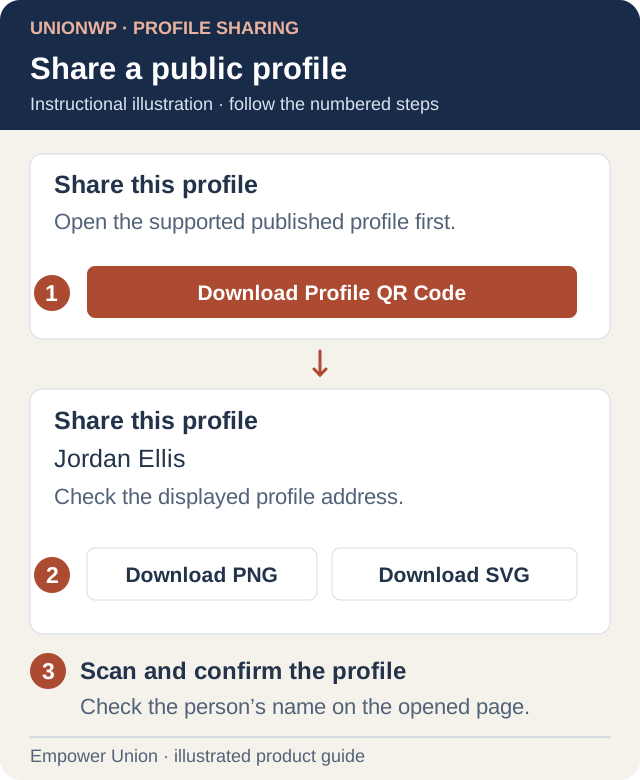
Illustration: the public sharing button opens a dialog with the profile name, address and download choices. Jordan Ellis is a neutral example. Open full-size illustration.
- Open the individual profile, rather than a search result, listing or editor preview.
- Find the Share this profile card. Depending on the layout and screen width, you may need to scroll to the profile’s side information.
- Select Download Profile QR Code.
- In the Share this profile dialog, confirm the person’s name and destination address.
- Select Download PNG for a ready-made image or Download SVG for artwork that needs resizing. The dialog reports when the download starts.
- Find the saved file in your browser’s download location.
- Close the dialog with its close control, then scan the saved artwork with a phone.
- Confirm that the code opens the correct public profile. Repeat the scan on the final card or flyer before printing in quantity.
Keep the white border intact and preserve the square proportions. See Print and scan for a complete print check.
What the recipient receives
The code opens the published profile. It does not attach a contact card or place the person in the phone’s contacts. Downloadable contact cards remain planned.
Corrections made at the same profile address appear on future visits. If the profile address changes, ask the administrator to preserve the old address with an appropriate redirect or replace the QR artwork before distributing more copies.
If the sharing card is missing
- Confirm you opened the published individual profile, not a draft or a general page.
- Check whether other supported profiles on the same site have the card.
- Ask the administrator to confirm the supported profile layout and public-address configuration. An arbitrary page or private review environment may not have this control.
- As an alternative, copy and share the verified public profile address.
A QR does not grant permission to view private content. Test the destination as a public visitor when that is the intended audience. If download fails, report the profile address, browser and visible error through support.