Check email delivery
Trace a missing message from the submission record to transport evidence.
Audience: administrators investigating website email. Requires: the site’s configured mail connection and available logs. Outcome: identify whether the issue concerns the record, notification creation, transport or recipient inbox.
Read the dashboard
- Open UnionWP Pro → Email Delivery.
- Review the connection section. Confirm the intended sender name and address, and note any missing connection warning.
- Under Last 7 Days, read Sent / accepted, Failed and Pending.
- Review Recent Errors, noting the time, log reference and error text relevant to the report.
- Review the recent-email table. Use its displayed site timezone when comparing times with a submission.
- Open an existing detailed settings or log link only when you need it and have the required access.
These are results in retained mail logs. Check whether Logging is on: missing or disabled logs limit the evidence, and a zero count does not prove that no email was attempted. The recent-email and recent-error tables each show up to 10 records. Reload the screen to refresh it. Absence from a recent table is not by itself proof that a message never existed.
Interpret the results
| State | Meaning and next check |
|---|---|
| Configured | Saved connection information exists. Check recent results for actual use. |
| Sent / accepted | The transport accepted the message. Confirm intended recipient and inbox handling. |
| Failed | A transport failure was recorded. Read the associated error and log reference. |
| Pending | No final transport result is recorded yet. Recheck the relevant log and timing. |
| Email simulation on | The saved mail setup is in simulation mode. Ask the mail administrator to confirm intended testing behavior before relying on delivery. |
| No relevant record | The recent view has no matching evidence. Inspect detailed logs and notification rules. |
Acceptance does not prove delivery to a particular inbox, reading by a person or approval of the underlying request.
Investigate a missing notification
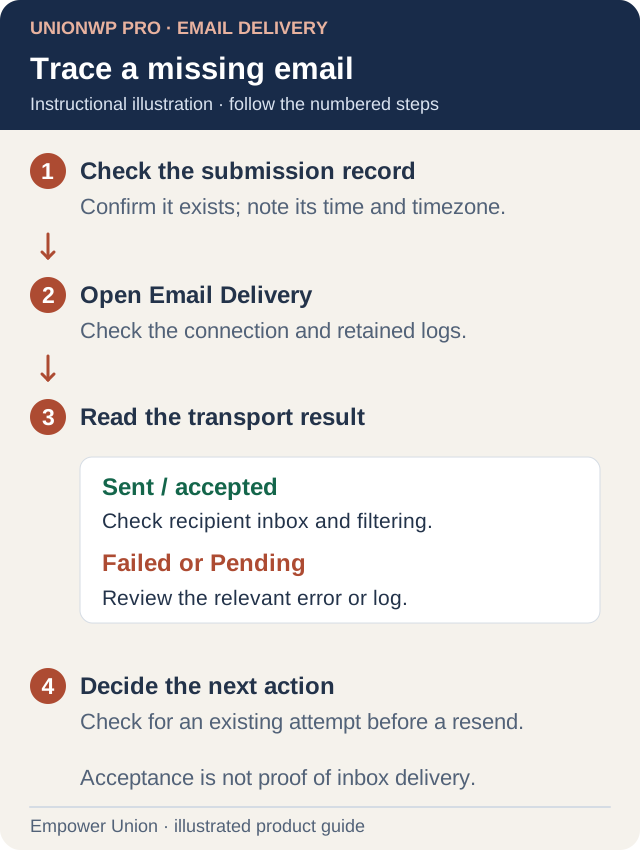
Illustration: investigate the submission and email separately. Sent / accepted is transport evidence, not confirmation of inbox arrival. Open full-size illustration.
- Confirm whether the application or request record exists in its approved private workflow.
- Record its submission time and timezone. Keep personal contents out of routine support messages.
- Confirm which recipient should receive the notification and which rule should create it.
- Compare the time with delivery evidence. Use the detailed log if the recent table is insufficient.
- For a failure, report the error and log reference to the mail administrator.
- For an accepted message, ask the intended recipient to check junk, filtering and mailbox rules.
- If no email was created, review the form’s notification conditions and workflow setup with the responsible administrator.
- Arrange a controlled test or resend only after checking for an existing record and delivery attempt.
For example, an application record with an accepted email and no visible inbox message points to a different investigation than a missing record with no email log.
What this screen changes
Opening Email Delivery does not resend a message or change form recipients. Notification rules and connection settings remain in their existing systems. Keep independent membership delivery safeguards in place.
Report the workflow, time, expected recipient role, visible result and redacted error through support. Do not repeatedly submit applications to test delivery.