Create a QR code
Generate and verify a PNG or SVG for a page, document link or short message.
Audience: site administrators. Requires: active UnionWP, administrator access and browser JavaScript. Outcome: a downloadable static QR code that opens the intended destination or displays your text.
Use Help with this screen near the top of the QR generator to open this guide in a new tab while keeping your current inputs in place.
Before you begin
For a link, open the destination first and copy its complete public address. Prefer a stable https:// page on a domain your organization controls. A QR for a document points to that document’s URL; it does not upload the file.
For a short message, prepare the exact text you want people to see. Anything encoded in a QR can be read by someone who has the artwork. Avoid passwords, private application details or temporary sign-in links.
Generate and download
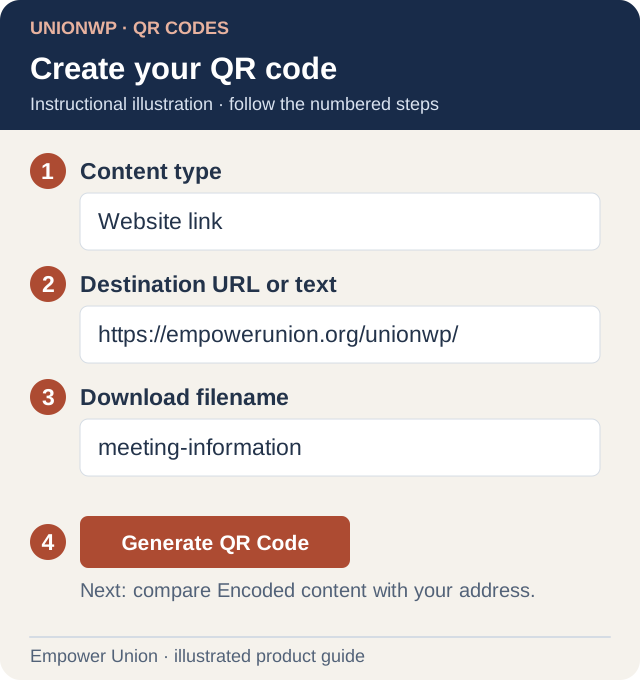
Illustration: choose the content type, paste the destination, name the file, then generate. The example uses an Empower Union public page. Open full-size illustration.
- In the site administration sidebar, select UnionWP to open QR Codes. The top toolbar also offers UnionWP → QR Codes.
- Under Create your code, choose Content type: Website link or Plain text.
- Paste the address or message into Destination URL or text. For a link, include the scheme, such as
https://empowerunion.org/unionwp/. - Enter a recognizable Download filename, for example
meeting-information. This names the file; it does not change the encoded content. - Select Generate QR Code.
- Under Preview & download, wait for QR code ready. Check the encoded content below. Compare Encoded content character by character with your intended address or message.
- Select Download SVG for artwork that must resize cleanly, or Download PNG for applications that need an image. The generator’s PNG is at least 1,000 pixels wide. Both formats include a white scanning border.
- Find the file in your browser’s download location and give the original to the person preparing the design.
Check the result
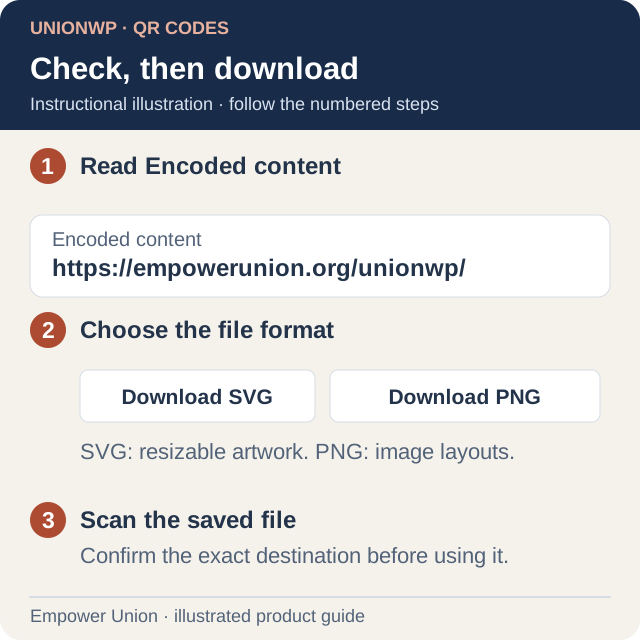
Illustration: compare the destination before choosing a download. Scan the downloaded artwork and repeat the check in the final design. Open full-size illustration.
Scan the downloaded artwork with a phone. For a link, confirm the correct page or document opens and is usable on mobile. For plain text, confirm the scanner displays the intended message. Follow Print and scan before distributing printed copies.
Change or reuse a code
Changing the content or content type clears the preview and download controls. Select Generate QR Code again before downloading. Changing only the filename does not change the destination.
Generation happens in your browser; the generator does not save a library of codes. Retain your original files and destinations. A static code keeps the same encoded address after printing. Content at that address can change, but the code itself cannot be edited remotely.
Resolve a problem
- Invalid address: use a complete
http://orhttps://address without embedded login credentials; prefer HTTPS. - Content too long: shorten it. The generator accepts up to 1,200 UTF-8 bytes, so some characters use more than one byte.
- No preview: enable JavaScript, reload the screen and try a shorter value.
- Sign-in appears after scanning: the destination is protected. The QR shares its address, not access permission.