Pro dashboard tour
Find Pro tools, understand access requirements and choose a task.
Audience: site administrators. Requires: active UnionWP and UnionWP Pro. Connected reports also need the corresponding service setup. No programming is required to use these screens.
Open the overview
- Sign in to your union’s site administration area with your assigned administrator account.
- In the sidebar, open UnionWP Pro → Overview.
- Confirm the page title Your Pro Services and the union name.
- Find the card for your task and select Manage.
The free UnionWP menu opens QR Codes. UnionWP Pro is the separate menu for Pro controls and reports. In the top toolbar, UnionWP → Pro Overview also opens the overview when available.
Each Pro screen provides Help with this screen near its heading or report navigation. It opens the relevant guide or section in a new tab, so you can refer to the instructions without leaving unsaved work.
Choose a tool
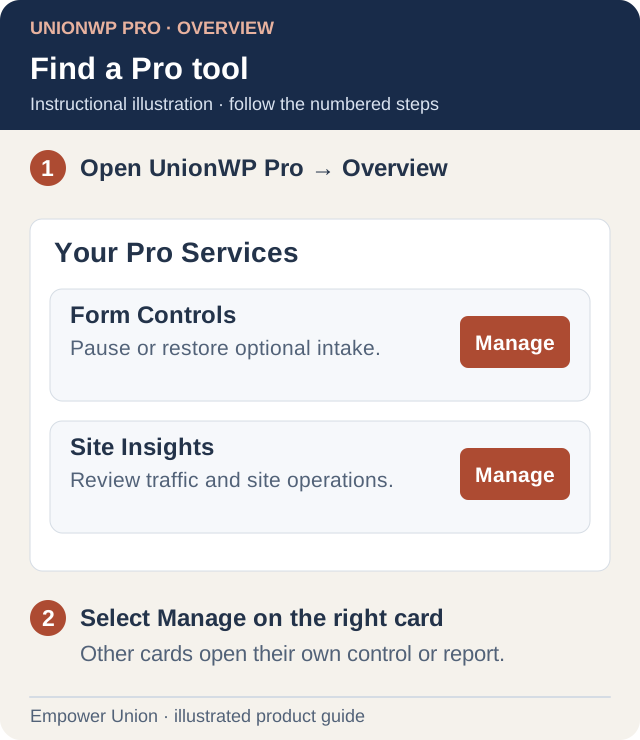
Illustration: the Pro overview groups tools into cards. Two example cards are shown; use Manage on the card for your task. Open full-size illustration.
| Tool and guide | Use it to… |
|---|---|
| Form Controls | Pause or restore optional intake |
| Staff Notifications | Review and control mapped staff alerts |
| Email Delivery | Read connection and transport results |
| Site Insights | Review visitors, traffic and site operations |
| Backups | Read backup coverage, schedule and recent jobs |
| Uptime Monitoring | Check monitored availability and existing alert routing |
| Security | Read protection settings and retained login totals |
| QR Codes | Create a static QR with the free product |
| Client Settings | Connect existing forms and website pages |
An SMS Staff Notifications card may appear. SMS sending and credit purchases remain unavailable; see SMS availability.
Read status before acting
A configured connection and a successful recent refresh are different things. Open the detailed view and read its timestamps and warnings. A missing connection means setup is needed; an outdated report does not establish the current health of the underlying service.
Reporting screens show evidence. They do not automatically repair delivery, restore backups, change incident policies or enroll accounts in additional security. Form controls, notification actions and client mappings can change behavior when saved or selected.
If a screen is missing
Confirm the site and account, then ask the responsible administrator to check installed versions and assigned permissions. Ordinary staff accounts do not receive Pro dashboard access automatically. Keep UnionWP and the dependencies used by your configured workflows active.
For a new or inherited website, use Setup and handover before changing existing settings.