Print and scan QR codes
Take a downloaded QR code through design, proofing and final print checks.
Audience: staff, administrators and anyone preparing artwork. Requires: a QR download and access to the final destination. Outcome: a checked design that people can scan under the intended conditions.
Choose and place the artwork
Use the original SVG when your design application supports it; it stays sharp when resized. Use the original PNG when an image is required. Avoid a screenshot or a compressed copy from a messaging app.
Keep the QR square and preserve the complete white border. Use dark marks on a light background. Leave decoration, text and photographs outside that border. Cropping the border or stretching the artwork can make a valid code unreadable.
Add a short explanation of what the code opens, such as “Meeting information,” and a readable website address as an alternative.
Test before a print run
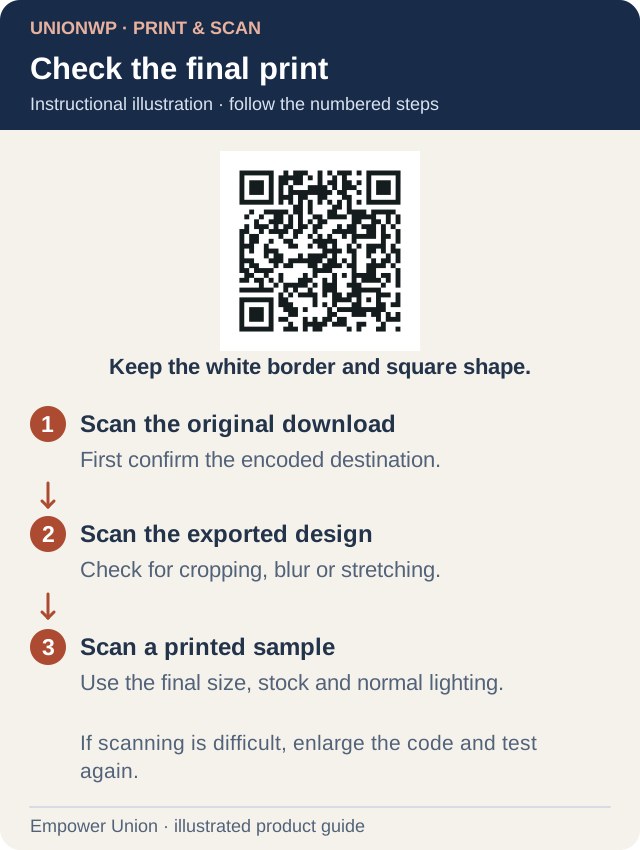
Illustration: test at three stages. This working sample QR points to empowerunion.org/unionwp/; it is not a profile or event code. Open full-size illustration.
- Scan the original download with a phone. Confirm the exact page, profile, document or text.
- Place the artwork in the final design at its intended size.
- Export the finished flyer or card and scan the exported version. Check for cropping, blur and distortion introduced during export.
- Print one sample using the intended size and stock.
- Scan the actual print under normal lighting and from the expected viewing distance. Try another phone when practical.
- Open the destination on mobile. Check its title, current information, important links and sign-in requirements.
- Approve the print run only after the printed sample works.
There is no single physical size that works for every viewing distance, amount of encoded content and print process. Increase the size and simplify the destination if the final sample is difficult to scan.
Diagnose a failure
| What happens | Check and next action |
|---|---|
| Camera does not recognize the artwork | Size, contrast, white border, blur, stretching or glare. Restore the original artwork, enlarge it and print another sample. |
| Original scans but the design does not | Cropping or export quality. Reinsert the original and check the final export. |
| Code scans to the wrong page | Encoded address. Generate and verify a corrected file. |
| Browser reports a missing page | Destination URL and redirects. Restore the address or arrange a deliberate redirect. |
| Sign-in is required | Intended audience and access. Use the appropriate public destination or explain the sign-in requirement. |
| Plain text appears | The code’s content type. This is expected for text; regenerate as a website link if needed. |
Keep printed material useful
A static QR keeps the same encoded destination. Keep that address working while the material remains in circulation. Recheck important printed resources when pages move, people change roles or event information changes. Renaming the downloaded file does not alter the code.