Get started with UnionWP
Learn what UnionWP does, find the tools available to you and complete your first QR sharing task.
UnionWP is the free foundation for Empower Union’s WordPress tools. Use it to create static QR codes, share supported public profiles and prepare QR artwork for printed materials. You can use these tools without UnionWP Pro or a paid QR service.
Who this is for: people sharing union information and administrators creating QR codes. You do not need programming knowledge.
1. Choose how you will use it
There are two starting points:
- Share an existing public profile: open that person’s published profile on your union’s website. No dashboard sign-in is needed when the profile and sharing control are public.
- Create a QR for another page, document link or message: open UnionWP → QR Codes in your site administration area. This requires a site administrator account.
Profile sharing depends on your website’s supported profile setup. Installing UnionWP does not create a directory or fill in people’s profiles.
2. Have the essentials ready
For profile sharing, have the published profile address. For a new code, choose a stable public page or document address, or prepare your exact short message.
If you need the generator, use your union’s approved sign-in link and your own administrator account. Confirm the correct website and whether it is live or a review site. Your website administrator handles installation and updates; ask them to confirm UnionWP is active if the menu is missing. See Sign-in and access if your assigned access does not match the tool you need.
3. Complete your first task
Choose one of the following paths.
Share a public profile
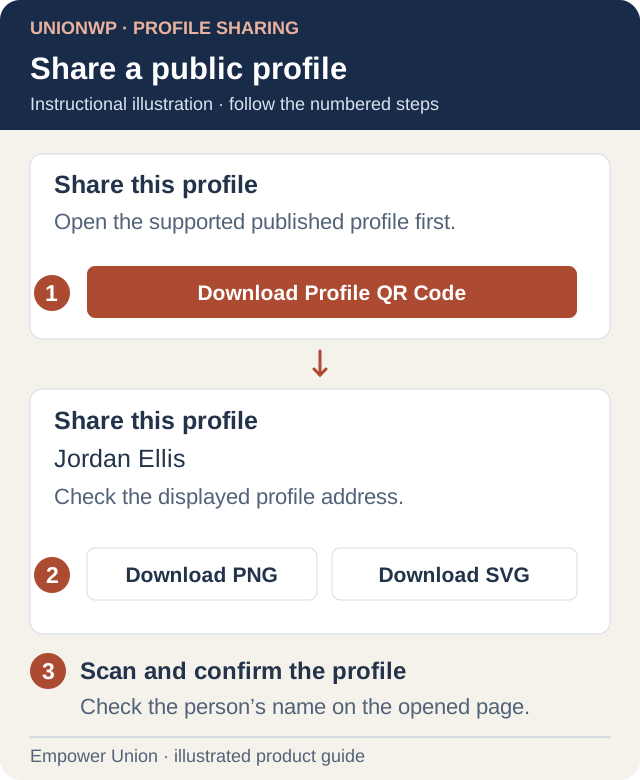
Illustration: the public sharing button opens a dialog with the profile name, address and download choices. Jordan Ellis is a neutral example. Open full-size illustration.
- Open the published profile and check the person’s name and visible details.
- Find its QR sharing card or Download Profile QR Code button.
- Use the available QR download control. If the button opens a dialog, choose the download there.
- Open the downloaded image and scan it with a phone.
- Confirm that it opens the same person’s correct public profile.
If no sharing control appears, check with the website administrator whether that profile supports it. Follow Share a profile for the illustrated instructions.
Create a QR for an existing page
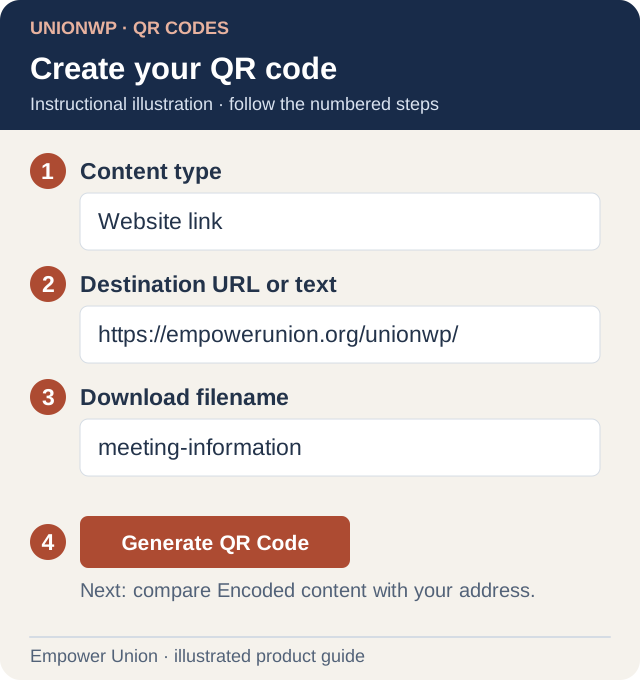
Illustration: choose the content type, paste the destination, name the file, then generate. The example uses an Empower Union public page. Open full-size illustration.
- Open the intended public page, confirm it works, and copy its full address.
- In the administration sidebar, select UnionWP to open QR Codes.
- Choose Website link, paste the address into Destination URL or text, and enter a recognizable Download filename.
- Select Generate QR Code. Wait for the ready message and compare Encoded content with the address you copied.
- Select Download SVG or Download PNG, then scan the downloaded artwork with a phone.
- Confirm that the correct page opens and is readable on mobile.
Your first task is complete when the downloaded code scans to the intended destination. For the full illustrated walkthrough, format choices and plain-text codes, follow Create a QR code.
4. Know what happens after download
The code is static: its encoded address or text stays the same. You can update the page at that address, but changing the code’s destination requires generating new artwork and replacing any distributed copies.
QR codes share an address; they do not grant access to protected documents or pages. The generator runs in your browser and does not keep a library of your codes. Save the original download and its intended destination together.
Before printing, follow Print and scan QR codes. Keep the white scanning border and test the final design at its actual size.
Where to go next
- Share a profile — follow the full public sharing workflow.
- Create a QR code — use the generator’s controls and download formats.
- Print and scan QR codes — prepare and check printed artwork.
- Get started with UnionWP Pro — use configured forms, notifications and reports if your union has Pro.
Use Help with this screen in the generator or Help with profile sharing on a supported profile for instructions at the point you need them. If the result differs, use Troubleshooting or Contact support.