Manage optional forms
Pause one optional form, pause all optional intake or restore saved choices.
Audience: administrators responsible for intake. Requires: Pro form controls and completed client setup. Outcome: the intended optional form is available or paused, with the public result checked.
Understand the controls
The designated membership form is excluded from these switches. Its publication, email delivery and access settings remain separate.
Enable Optional Forms is the master switch. When off, optional forms are unavailable and saved individual choices are retained. When on, published forms follow their individual switches. An unpublished form remains unavailable even when its saved choice is on.
Turning off a staff-content intake form does not remove content already published.
Pause one form
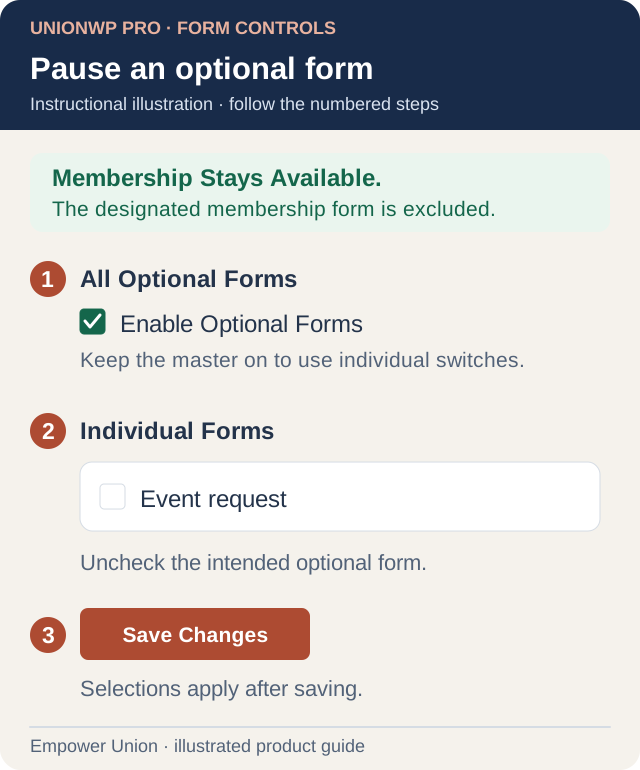
Illustration: pause one optional form while leaving the master on. The row is an example, not a live setting. Open full-size illustration.
- Open UnionWP Pro → Form Controls.
- Read Membership Stays Available and confirm you are changing an optional form.
- Under All Optional Forms, confirm Enable Optional Forms is checked. If you intend to keep every optional form paused, leave the master off instead.
- Under Individual Forms, identify the row by its title and form number.
- Uncheck only the form you want to pause. Review the other rows before saving.
- Select Save Changes.
- Reopen or reload the screen and read Saved Availability for that row.
- Refresh any already-open public form page and check its actual visitor behavior using View Page, where available.
A mapped dedicated page with disabled-form routing goes to the contact fallback. On a shared page, the form or mapped section can be hidden while other content remains. The result depends on the page mapping and configured layout.
Pause all optional forms
Uncheck Enable Optional Forms and select Save Changes. Confirm Off (Master Switch) in the saved rows. Individual controls are unavailable while the master is off; their previous choices are retained.
Check the affected public pages. A form someone opened before the change cannot accept a new submission after it has been disabled; the visitor must use the current contact route.
Restore intake
- Check Enable Optional Forms if the master was off.
- Review all individual choices before saving; previously enabled forms may become available together.
- Check the intended published form and select Save Changes.
- Confirm On under Saved Availability.
- Refresh the actual public page and inspect the form without making an unnecessary live submission.
If the row says Unpublished (Remains Unavailable), its publication must be reviewed in the existing form system. The switch cannot publish it.
Preview versus public page
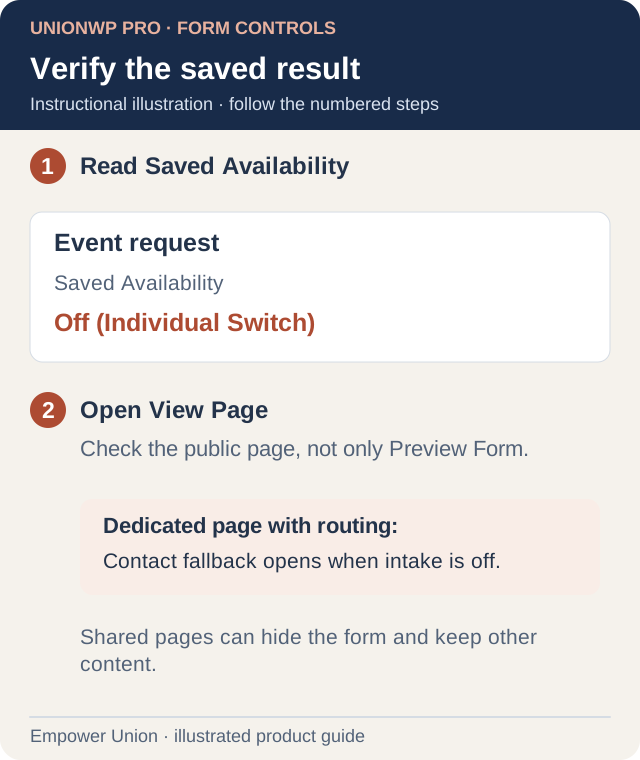
Illustration: Saved Availability confirms the saved state. View Page checks public behavior; Preview Form can still display an off form. Open full-size illustration.
Preview Form opens the administrator preview, including an off form. It does not enable public intake. View Page opens the mapped website page. A form without a page mapping has only a preview link.
If the public result differs, check the mapping, publication and any configured dependent form. Restore the specific saved choice if the wrong form was paused; do not reset unrelated controls.