Request a website or form change
Prepare a website feature, new form or form update for administrator review.
Español · English edition
Audience: staff submitting a website or form request. Availability: configured staff workflow. Use the request directory or link supplied by your organization.
Choose the request type
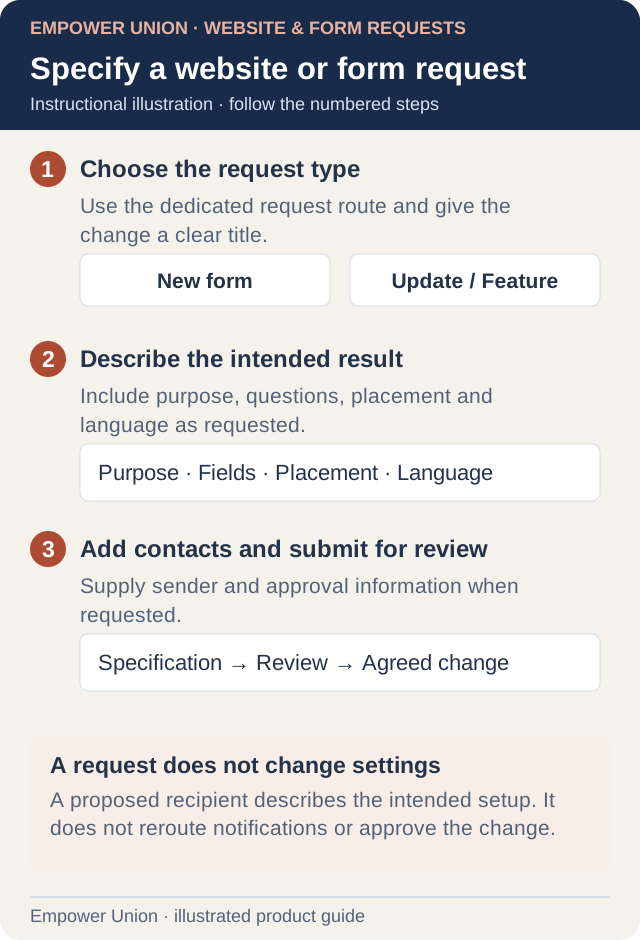
Illustration: A proposed recipient describes the intended setup. It does not reroute notifications or approve the change. Simplified workflow; follow the controls on your site. Open full-size illustration.
Use Website & Form Request for a new form, an update to an existing form or a website feature. Use the dedicated content form for news, notices, events, tributes or an ordinary content correction. Selecting the right route gives the reviewer the required specification.
- Select the request type and give it a clear title.
- Explain what the change should accomplish and who will use it.
- For a new or updated form, describe its questions, required information and intended submission destination. These fields may appear only for form requests.
- Supply the existing page or form address when relevant and describe where the feature should be linked.
- Choose the requested content language. If Spanish content is needed, follow Provide Spanish content.
- Give a requested completion date only if you have one, and distinguish it from a guaranteed deadline.
- Attach the specification or approved supporting files within the limits shown.
- Complete sender and approval information, review and submit once.
Recipient and approval fields
Who should receive submissions? and a requested recipient email describe the proposed behavior of the new or changed form. Typing an address there does not immediately reroute existing notifications or create a new connection.
Where Approval offers Self-approved or Another approver, use the choice that accurately describes the request. Another approver requires their name and valid email when those fields appear. Supplying an approver contact is not an automatic approval or an automatic email to that person.
After submission
Keep the confirmation and respond to the reviewer’s questions. The request does not create a form, change settings or publish a website feature by itself. The administrator reviews scope, data handling, routing and implementation before making an agreed change.
Ask for a review of the finished page and form before relying on it. A preview is not proof that live submissions, notifications or access have been tested. If a previous request needs correction, contact its reviewer rather than submitting multiple competing specifications.