Submit an address update
Use the approved public address-update form and keep personal details in the protected workflow.
Español · English edition
Audience: people updating their mailing details. Availability: a configured public workflow, where offered. It is separate from a membership application and does not imply that every UnionWP installation includes it.
Choose the official form
Open the address-update link from the organization’s official website. When English and Spanish versions are available, use the site’s language switcher to open the corresponding page. A translated page should show one form in the selected language, rather than requiring you to complete both editions.
Use only the fields requested by the actual form. Do not put identity details in a general public-content request or an ordinary product-support message.
Complete the update
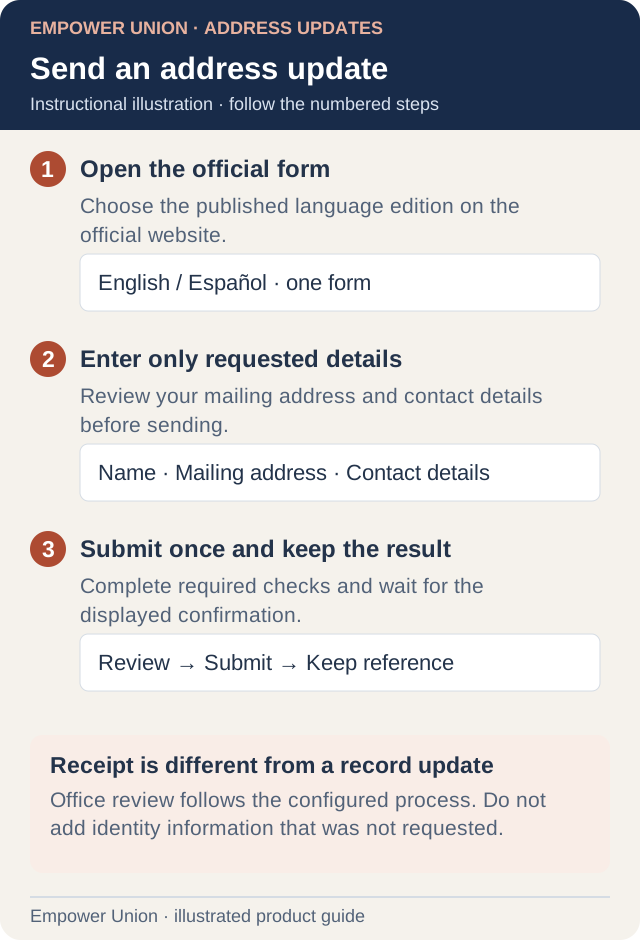
Illustration: Office review follows the configured process. Do not add identity information that was not requested. Simplified workflow; follow the controls on your site. Open full-size illustration.
- Read the current instructions and confirm that this is the mailing-address update process.
- Enter your full name and current mailing address in the displayed fields.
- Supply the phone, email and employer information requested by that form.
- If an identity-check field asks for only part of an identifier, provide only that requested part; do not add a full identifier or an identity document elsewhere.
- Review spelling, postal details and contact information.
- Complete the required security check when it becomes available, submit once and wait for the displayed result.
- Retain any confirmation or reference and follow the office’s instructions for corrections.
Understand the result
The confirmation relates to receipt of the request. It does not prove that every external membership, employer or mailing system has already been changed. Office review and record updates follow the organization’s process. Contact the office about status or corrections.
Staff should review the authorized notification or private record through their assigned process. A staff-facing notification can contain the submitted information directly; administrator access is not automatically required or granted to every recipient.
If the page is unavailable
Use the official contact alternative. Do not use an administrator preview to bypass a paused form. If the result is uncertain, give the office the approximate submission time and ask whether a record exists before sending another copy.
For technical help, report the page, language, error and time without including identity fields. See Contact support.